
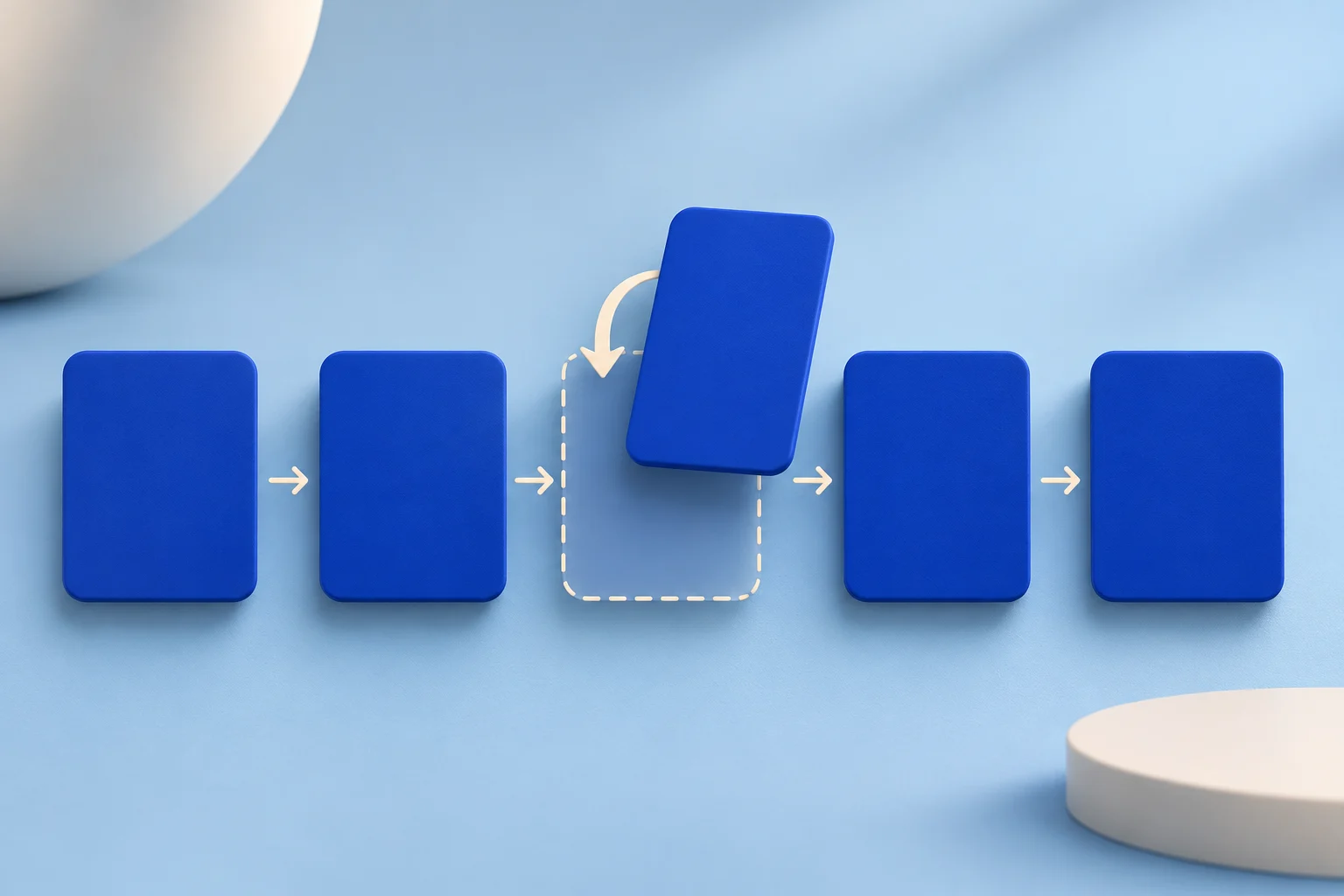
An onboarding video can become wrong after a small product change. The dangerous part is not the obvious new button. It is the old instruction that still tells a new user to take the former path, or a caption that names a setting that no longer exists. Treat the update as a change to a user task, then trace every place that task appears in the video.
You do not always need to record the entire tutorial again. You do need a current account, a source recording you can edit, and a review that checks the transition into and out of the changed step. A replacement shot that looks clean in isolation can still leave the surrounding explanation false.
This guide uses a fictional team workspace called FlowLedger. Its old onboarding video tells a new owner to invite teammates from a button on the project page. The product now puts invitations in Workspace settings. No customer result or Prolifik performance claim is represented by this example.
Identify the user task before marking frames
Write the task in one sentence: “A workspace owner invites a teammate with the correct role.” That sentence stays stable even if the interface moves. The old video may contain several smaller claims: where to open the control, which account can use it, which role to choose, and what confirms the invitation.
Make a short change sheet before opening an editor:
| Question | Old video | Current product evidence |
|---|---|---|
| Where does the action start? | Project page | Workspace settings |
| Who can perform it? | Workspace owner | Check the current permission rule |
| What proves completion? | Invitation appears in a list | Record the current visible result |
| What could be misunderstood? | A project-level invite | Workspace-level access may be broader |
The last row is more important than the button location. If the new control grants wider access, simply replacing a screenshot can leave an unsafe instruction. Check the product team's current permission specification or run the flow in a permitted sample workspace. Do not infer access from the appearance of a menu.
Mark every dependent sentence and asset
Review the accepted master, its transcript, captions, thumbnail, description, linked help article and any short clips cut from it. Record the exact timecodes where the old path is shown or named. Keep a copy of the old export for comparison, but remove it from the active handoff once the replacement is approved.
For FlowLedger, an opening line might say, “Invite your team from any project.” That sentence is now wrong even before the old button appears. A later caption reading “Project members” may also be wrong if the current screen says “Workspace members.” A thumbnail with the old menu would continue to promise an outdated path.
Use a dependency list rather than trusting the editor's memory. Mark each item as replace, verify, or unchanged and give it an owner. The video file is one deliverable; the surrounding discovery copy can keep an old instruction alive after the picture is fixed.
Record the current action with a safe sample account
Capture the new flow in a workspace that contains no customer names, real invitations or private projects. Use the role that a new user is meant to have. If you must show a restricted control, say which role is required instead of making the screen look available to everyone.
Show the action and its real result. A cursor hovering over Invite does not prove the invitation was created. For a short tutorial, the result might be a visible pending invitation in the sample workspace. If that result includes an email address, use a controlled test identity and confirm that it is safe to publish.
Keep the capture close enough to read on a phone. If the relevant state is tiny, record a narrower region or design a separate explanatory card. The mobile software-demo recording guide covers framing choices; the change review here is about preserving the task's meaning.
Choose a repair that matches the change
There are three reasonable edit paths. Pick one after watching the old and new steps together.
- Replace a short segment when the surrounding narration and sequence remain accurate. Re-record the action, adjust the caption, and check the audio and picture at both joins.
- Rebuild the task section when the new path changes prerequisites, permissions or the order of actions. A longer replacement is less confusing than several patches that skip context.
- Retire the video when the product has changed so much that viewers cannot follow the remaining footage. A short new recording is more useful than a collection of accurate fragments inside an obsolete flow.
In FlowLedger, moving invitations from a project to Workspace settings may also change who receives access. That calls for at least a full task-section review. It would be misleading to keep an old voiceover about project membership while showing a workspace invitation screen.
Do not hide an inaccurate action behind B-roll. A new visual can cover a jump, but it cannot make the spoken instruction true. If the product behavior is still being finalized, hold the tutorial rather than publishing a speculative path.
Check the replacement against the full journey
Watch from the prerequisite before the change through the next user step. Pause after each instruction and ask whether a person with the stated role could follow it in the current product. Then watch without sound. Captions should name the same controls that are visible and should not cover the result.
Open the actual destination page after upload. Check the title, description, thumbnail, chapter labels and any related short-form cut. A corrected local export does not prove the public version changed. Keep the approved source, product version, capture date and publication URL together so the next update can be traced.
If you use Video Hook & Demo to make a shorter promotional cut from the corrected recording, prepare and inspect the footage first. The format uses a supplied demo clip and replaces its source audio with library music or silence. Do not use it as a shortcut for preserving a narrated onboarding tutorial.
Make a short from the corrected demo footage
Prepare the current recording, then inspect the delivered Hook & Demo video before publishing it.
Explore Video Hook & DemoFacts checked 2026-11-02. Worked examples are illustrative unless a real source is identified.
- Prolifik Video Hook & Demo Checked 2026-11-02
- Prolifik mobile software-demo recording guide Checked 2026-11-02
- W3C WAI captions and subtitles Checked 2026-11-02