
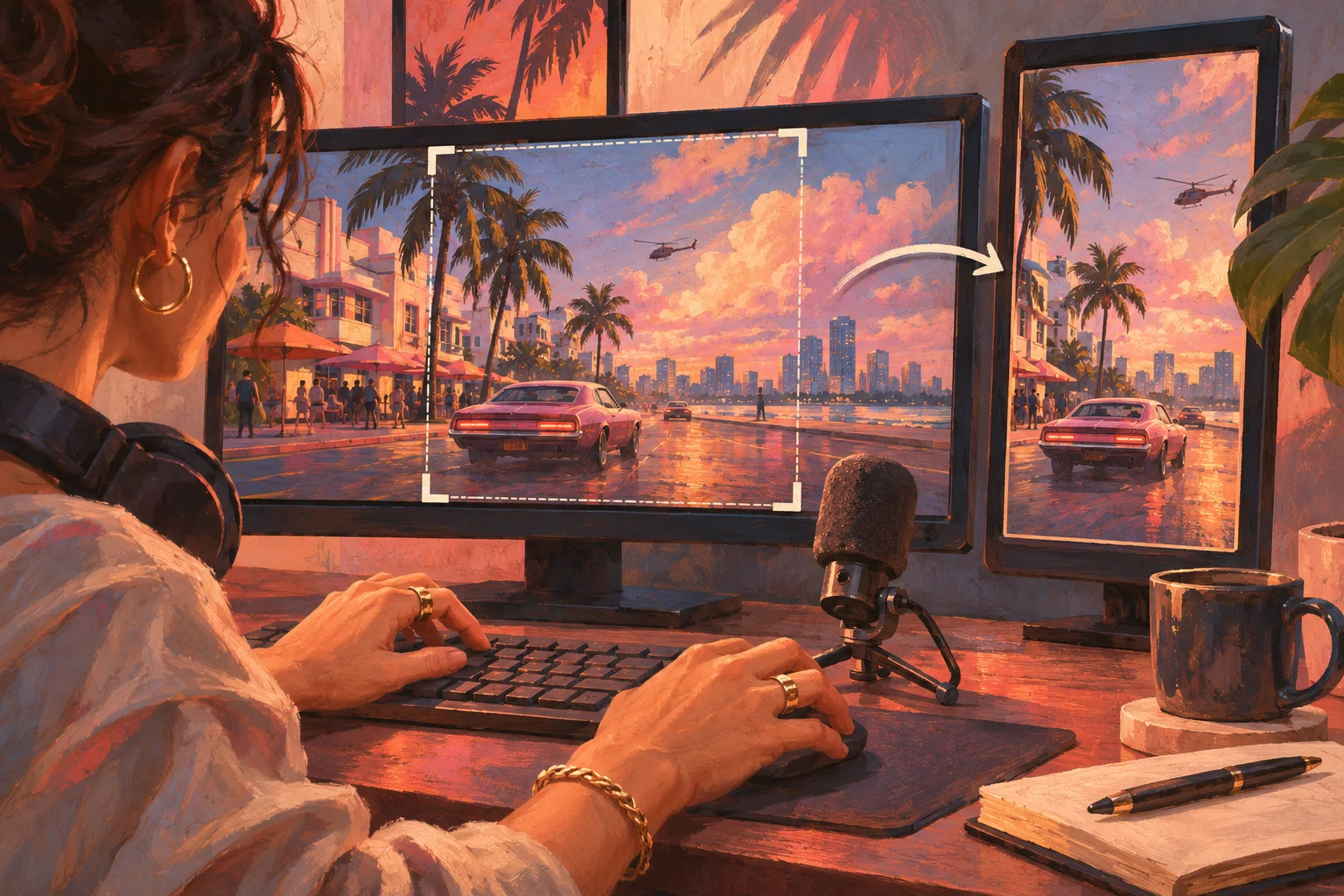
To clip GTA 6 streams for TikTok and YouTube Shorts, begin with a recording you can use, select one complete moment, then make the vertical version understandable on its own. The crop and captions matter, but the editorial choice comes first.
This walkthrough uses a hypothetical moment: a streamer confidently plans a shortcut, takes a wrong turn and reacts to the mistake. It illustrates an editing method. It is not a description of verified GTA 6 gameplay.
1. Confirm the source and the intended use
Use your own recording, a client-supplied file or a public recording the creator has authorised you to edit and publish. Record the original URL or filename, creator, timestamp and permission.
Watch a little before and after the candidate. You need to know whether the apparent joke is complete, whether the speaker is quoting someone else and whether an important correction happens later.
Avoid leaked or unauthorised prerelease footage. A public link is a way to access a recording, not a blanket licence to republish it.
2. Mark the setup, turn and payoff
For the hypothetical shortcut clip, your working notes might look like this:
| Source position | What happens | Editing decision |
|---|---|---|
| 00:00 to 00:05 | The streamer explains the shortcut | Keep the shortest line that establishes the plan |
| 00:05 to 00:14 | Uneventful travel | Remove only what does not change the meaning |
| 00:14 to 00:22 | The wrong turn becomes clear | Keep the visual evidence |
| 00:22 to 00:29 | The streamer reacts | End after the reaction resolves |
These are example timestamps, not a prescribed clip length. The story determines the edit. A useful ten-second reaction and a longer explanation need different treatment.
Write a neutral working title such as “The shortcut that added another turn.” Avoid making a factual claim about a game mechanic until the footage supports it.
3. Import the recording and request candidates
Prolifik accepts supported public Twitch, Kick and YouTube recordings, plus uploaded video files. If the original link is private or inaccessible, use an authorised file rather than expecting a public-link workflow to bypass access restrictions.
Set a clip range appropriate to the moment. Prolifik's default range is 30 to 90 seconds, with adjustable bounds. Treat returned clips as candidates you will review, rather than assuming the first selection is finished.
Clip minutes count the source duration you submit. A two-hour recording uses 120 minutes even if you keep only two clips. If your source is long, decide which authorised session or prepared excerpt is worth processing before starting the job.
4. Frame the action for a phone
Inspect what the viewer needs at each point. In the shortcut example, that could be the road junction and the streamer reaction. A fixed centre crop may remove the turn that explains the joke.
Use a gameplay-focused frame when the action carries the story. If the facecam adds meaning, give it enough space without hiding the vehicle or important visual cue. Some moments need a different layout rather than a tighter crop.
Preview on a phone. Platform controls can cover text or action, and interfaces change. Leave comfortable space around essential captions instead of assuming every pixel of the export stays unobstructed.
5. Correct captions against the audio
Check names, slang, places and clipped words manually. GTA footage can include engine noise, overlapping speech and fictional names that transcription gets wrong.
Break captions into readable phrases. Keep a key noun with the words that explain it. Do not add a dramatic caption that changes the speaker's meaning.
Captions support understanding; they do not replace missing context. If the viewer cannot identify the plan without a sentence of setup, keep that sentence or add a brief, accurate explanation.
6. Review sound and the ending
Listen once on headphones and once on a phone speaker. Speech should remain understandable when the game becomes loud. Review music separately: game radio or another embedded track can create rights issues even when the creator permits the footage.
Keep enough of the reaction for the moment to land. Avoid a forced loop that conceals a correction or changes the sequence of events.
Make the last check at normal playback speed. A frame-by-frame inspection can find a crop error, but it will not tell you whether the clip feels slow.
7. Approve and publish deliberately
In Prolifik, review clips in the Library before moving approved work into the calendar. Check the destination account, caption, spoiler wording and export before scheduling.
Prepare the TikTok and YouTube versions for their actual purpose. A shorter discovery post and a longer original explanation are different editorial products. Uploading the same file does not guarantee the same distribution or monetization.
Keep the source timestamp with the finished version. For a repeatable publishing plan, follow the GTA 6 channel guide. For the wider tool workflow, see the GTA 6 clip editor.
Put your next recording to work
Make captioned vertical candidates, review the edit, then approve what is worth publishing.
Explore the AI ClipperFor the game-specific workflow, visit the GTA 6 clip editor.