
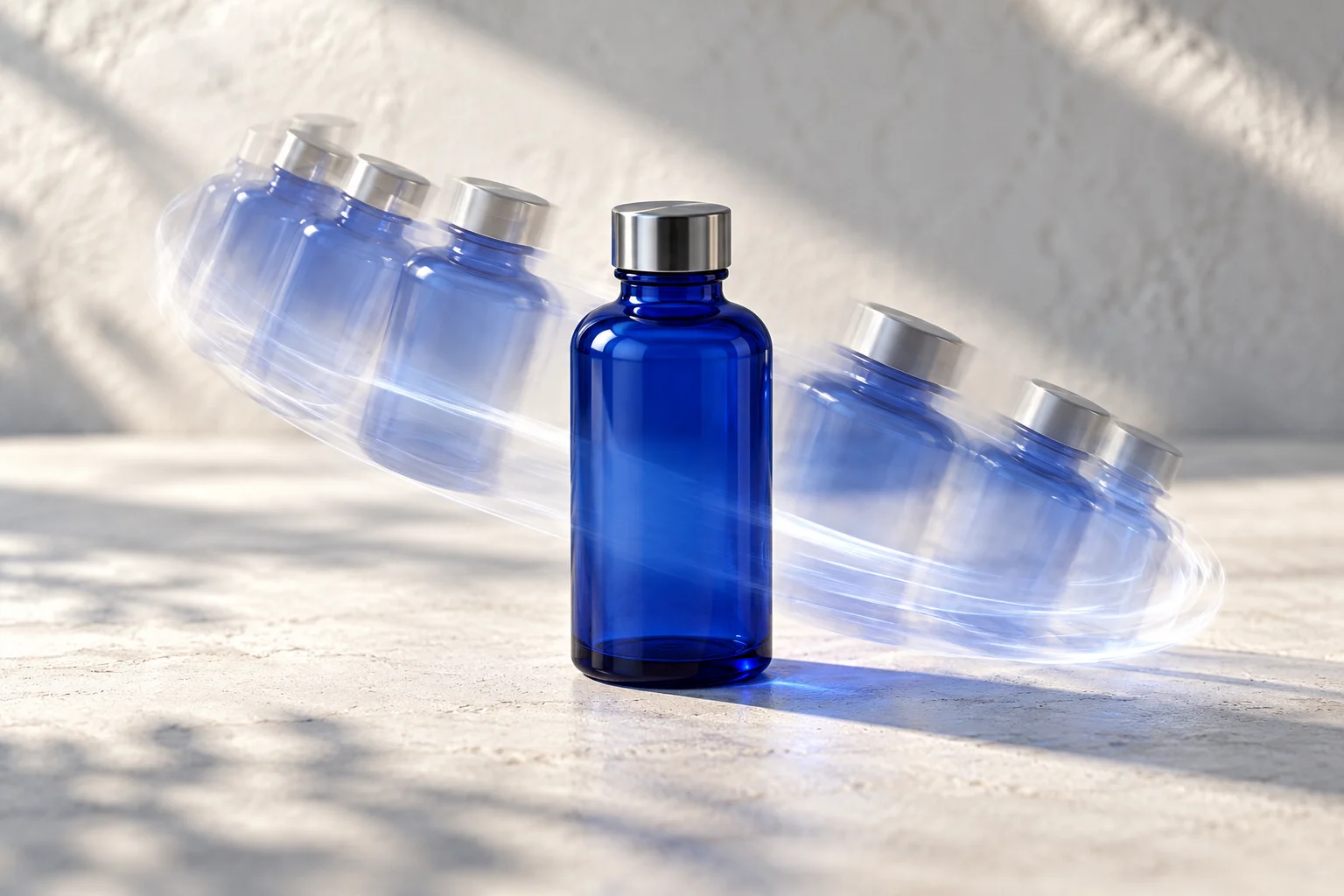
An image-to-video prompt should describe how an existing product photo moves, not give the product capabilities it does not have. A camera move around a bottle is one task. Making the bottle dispense a substance is another, and it requires evidence that the action represents the real product.
For a small marketing team, start with a photograph you have permission to use, one intended motion and an explicit rejection list. Keep the source photo beside every candidate. A polished clip can drift away from the real object's geometry, label or material while still looking plausible.
This guide uses a fictional reusable desk bottle as an original example. It is a creative exercise, not a demonstration of a customer's product or a measured Prolifik generation result.
Decide whether you need motion or a sequence
A sequence of product photographs can become a Reel without animating the object inside any photograph. That is often the more reliable choice when packaging details, labels or exact appearance carry the message.
Image-to-video generation is useful when a small motion contributes something: a restrained camera move, a change in background light or a physically plausible movement that the supplied reference supports. It is not necessary merely because the final deliverable is a video.
Use the product-photos-to-Reels workflow when you need an ordered set of existing views. Use the method below when you deliberately want to generate motion from one reference and are prepared to inspect its accuracy.
Write a motion brief around the reference
Our source photo shows a closed cobalt bottle standing on a pale desk. The lid, silhouette and printed care label must remain unchanged. The desired shot introduces the product's appearance; it does not claim insulation performance or leak resistance.
An original motion brief could read:
Use the supplied photograph as the product reference. Keep the bottle closed, stationary and unchanged. Make a restrained camera move around the front quarter of the bottle. Preserve its silhouette, lid seam and label placement. Keep the desk quiet and the lighting consistent. No pouring, opening, liquid, extra accessories or new text.
This prompt identifies the permitted change and the facts that should stay fixed. It does not guarantee that a model will preserve them. Those constraints become inspection criteria for the returned clip.
Avoid requests such as “show the bottle keeping drinks cold all day.” That is a performance claim, not an observable motion instruction. A generated ice effect cannot establish the product's actual temperature retention.
Separate motion decisions from output settings
Choose the available aspect ratio, duration and resolution through the selected tool's controls or documented parameters. Do not assume a sentence in the prompt overrides an unsupported setting.
In Prolifik AI Studio, model capabilities differ. The current model-list contract describes accepted aspects, durations, resolutions and whether a reference image is required. It also exposes credit information. Inspect that contract before submitting a generation, rather than hard-coding the options from a different model or an older tutorial.
AI Studio is separate from the six Content Studio formats and from Clipper. It has its own access and credit requirements. The supported Prolifik Claude OAuth connection does not expose Studio generation tools; use an eligible dashboard or supported API/MCP client for that workflow. A general content connection is not proof that image-to-video tools are available in that client.
The MCP documentation explains these access boundaries. Check them before promising that a teammate can run the same request from every assistant.
Use a rejection sheet before generating variations
Write the review criteria while the reference is still in front of you:
| Element | Acceptable change | Reject the clip if |
|---|---|---|
| Camera | A modest change in viewpoint | The bottle rotates in a way the brief did not request. |
| Shape | Perspective changes consistent with the camera | The lid, base or body visibly changes shape. |
| Label | Stable placement from the reference | Letters mutate or an unsupported badge appears. |
| Action | Product remains closed and still | The lid opens, liquid pours or accessories appear. |
| Background | Quiet light variation | New objects imply a different package or included accessory. |
Review the whole duration, including the first and last frames. A correct opening frame is not enough if the product changes halfway through.
If a critical label is unstable, choose a different treatment. A real product photo held on screen with accurate HTML or editorial text can be more useful than an animated shot that changes the packaging.
Repair one problem rather than changing the whole idea
Suppose the camera move is satisfactory but the lid morphs. Record that specific failure. Try a smaller motion or a more suitable reference view if the selected workflow supports it. Do not simultaneously change the lighting, setting and product angle, because you will lose track of which change helped.
If successive candidates remain inaccurate, stop treating generation as the only solution. Use a real recorded turn of the bottle or a photograph sequence. The goal is a truthful usable asset, not a particular generation method.
Keep rejected versions separate from approved media so someone assembling the final Reel cannot select an attractive but inaccurate candidate by mistake.
Build the final video around the approved asset
The generated shot can introduce the product's appearance. Add claims only when you have separate support for them. Do not place invented customer outcomes over the clip and let the visual imply a demonstration.
Decide whether the final post needs disclosure under the destination's current synthetic-media rules. A source-photo animation and a realistic invented product event can have different implications; check the actual policy and production method rather than assume that using AI always has the same labeling requirement.
Inspect the exported composition at phone size. Keep the product visible when captions, account information and other destination controls appear. For more on the distinction between contextual footage and proof, use the format-selection guide.
Start with the Prolifik MCP tool guide to check the available Studio workflow, input requirements and current access. Retrieve and inspect the actual output before using it in a finished post. This article does not claim a tested render time, success rate or model-quality ranking.
Connect the supported video tools
Check your assistant’s tool access and the actual returned media before using the result.
Read the MCP tool guideFacts checked 2026-10-24. Worked examples are illustrative unless a real source is identified.
- Prolifik MCP documentation Checked 2026-10-24
- Prolifik REST API documentation Checked 2026-10-24
- Revid's AI video prompting article Checked 2026-10-24