
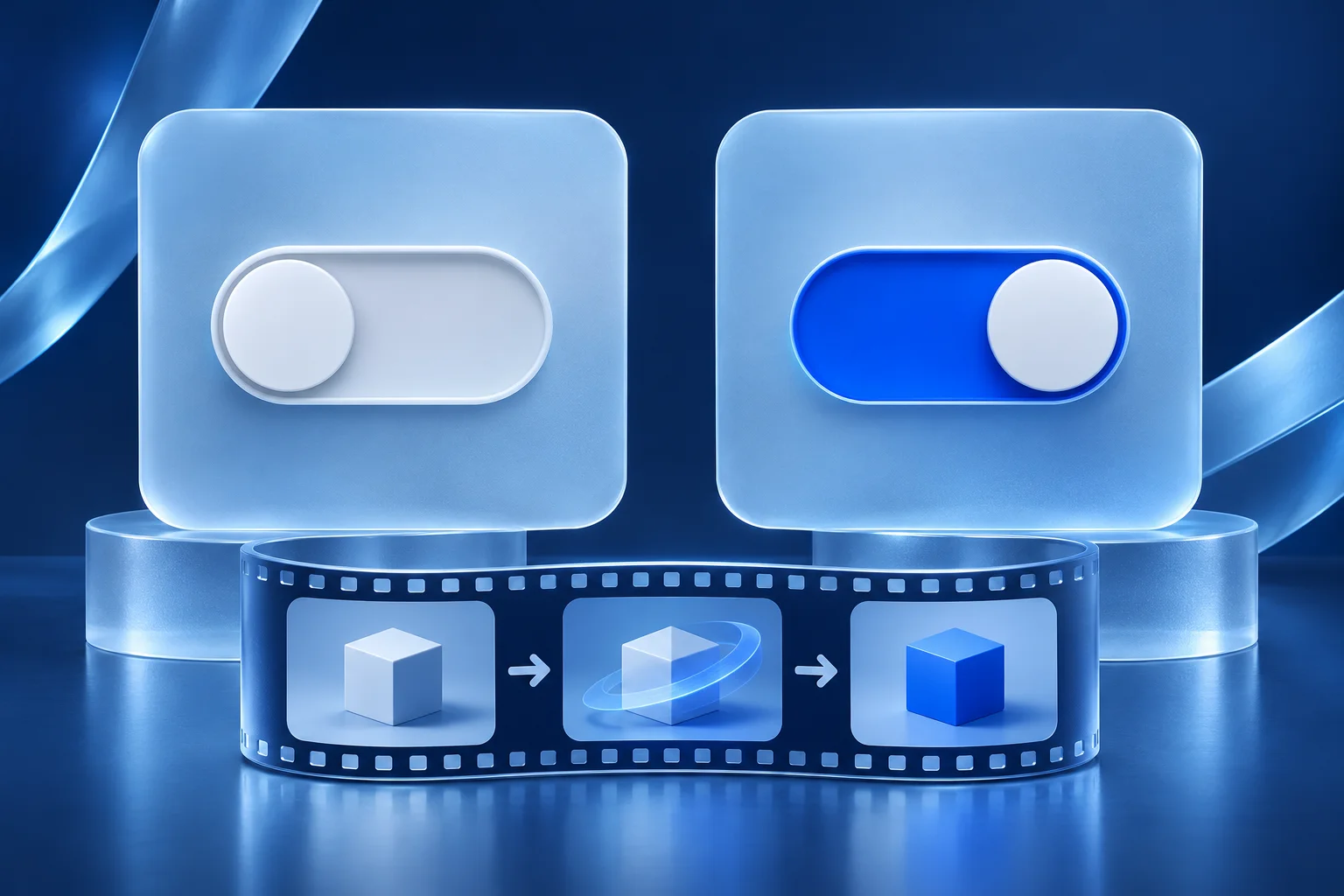
A settings video needs two honest states: what the app showed before the change and what it showed after. A “default versus custom” comparison fails when the editor records a configured account and calls its current state the default. Capture the actual starting conditions, then show one change and the visible result.
This is narrower than a generic before-and-after workflow video. The reader wants to explain a configuration choice, including which plan, role or account history determines the starting state.
Name the setting and the account scope
Imagine a fictional team calendar called Daymark. Its owner can choose whether new tasks are private to the creator or visible to everyone in a workspace. The team wants a short explainer for owners setting up a new workspace.
Before recording, the product owner verifies the current initial state in a genuinely new workspace. A long-running account may have an older preference. A trial may expose different controls from a paid plan. Do not infer a universal default from one screenshot.
Write the claim as a conditional sentence if needed: “In a new Daymark workspace using the current setup, owners can change who sees newly created tasks.” That is more useful than “Tasks are private by default” when the team has not verified every account class.
Use a three-state shot plan
| Shot | What it must show | What it must not imply |
|---|---|---|
| Starting state | The current setting in the tested account, with role noted | That every existing customer starts identically. |
| Change | The actual owner action and selected option | That a non-owner can perform it. |
| Result | A newly created task viewed from the relevant role | That old tasks were retroactively changed if they were not. |
The third shot is often missed. A toggle moving to “team” shows a choice, not that a teammate can actually see a new task. If the product has a save step, include it. If a permission cache or delay exists, do not cut it away to imply instant propagation.
Use a safe sample workspace with non-sensitive task names. Preserve the same workspace and account identity across the shots. A visual jump between two unrelated test accounts can look like one continuous configuration change.
Keep labels and timing synchronized
The on-screen line “Owner changes task visibility” should appear while the owner control is visible. A line saying “Everyone can see the task” belongs after the new task is shown from the correct viewer perspective. If the viewer never sees the teammate side, limit the claim to the setting change.
Avoid a dramatic before/after wipe that hides the save action. The video's pace should serve the configuration logic. A longer pause on the result may be more useful than a faster transition that makes the two states hard to compare.
The product demo script guide can help write a single action and result. This page adds the baseline test: verify the initial state instead of treating whatever is on screen as a product-wide default.
Handle settings that affect existing data differently
Some preferences apply only to new records, while others update existing ones. Do not create a demo from a new task and let the caption imply that older tasks changed too. Test the actual effect with the product team and state the scope explicitly.
For Daymark, imagine the setting affects only tasks created after the choice. Then the final line should say “New tasks follow the selected visibility.” The video should not show old tasks appearing in a teammate account unless that behavior is independently real and approved.
If the behavior varies by plan or role, make a version for each genuinely different use case or narrow the audience. A single short with five tiny caveats may be less helpful than a clear owner-specific demonstration and a link to current docs.
Prepare the source recording for a branded short
Use Video Hook & Demo after the current Daymark action is captured and approved. The format can build a short around owned product footage; it does not create the underlying configuration change. The current output replaces source audio with music or silence, so ensure visual text carries the role and result if narration is removed.
Keep the hook factual: “Choose who sees a new task” is tied to the visible control. “Fix every privacy issue in one tap” is unsupported and could be unsafe. Review the generated video, captions and crop. A mobile crop must leave both the selected option and resulting task state readable.
If a custom editor is used to compose separate shots, retain the source file and timecode for each one. A reviewer should be able to reconstruct what was recorded and which state came first.
Confirm the public video against the current app
Ask an owner-role reviewer to follow the video in a fresh safe workspace. If the menu, initial state or outcome differs, do not publish the clip as an instruction. Record the tested version and date internally, then link to a current canonical help page for details that will change.
After publication, open the actual post and check that the caption or preview does not cut off the qualification. When the setting changes later, update or correct the affected versions. A video of configuration behavior is a product claim, not just an attractive transition.
Show the actual setting change
Supply one approved source clip and review the hook against its real account scope.
Explore Video Hook & DemoFacts checked 2026-11-02. Worked examples are illustrative unless a real source is identified.
- Adobe: record software simulations adobe captivate.html Checked 2026-11-02
- Prolifik: video hook demo Checked 2026-11-02