
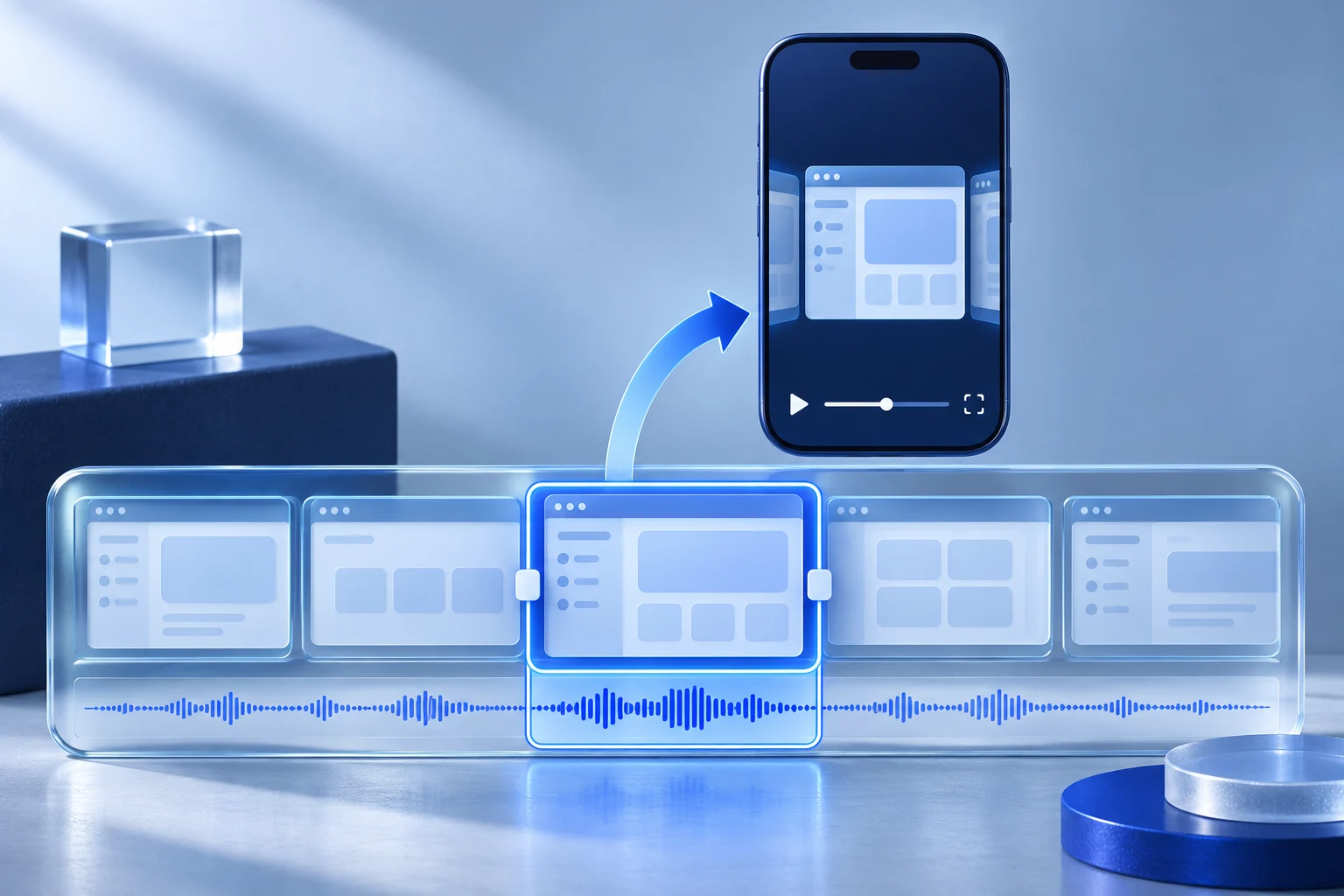
A sales call screen share can become a useful product short when the chosen segment shows one real question, action and result. Start with permission to reuse the recording, then inspect the source around the excerpt. The best-sounding 12 seconds may be unusable if the answer depends on a condition spoken just before the cut.
Treat the call as source material, not a script bank. A prospect's name, workspace and private data are not creative assets. Remove or replace them in a permitted source before making public versions, and ask the relevant owner to approve any quotation in its edited context.
Decide what the short can truthfully answer
A call may contain product setup, a pricing discussion, implementation questions and a support issue. Do not compress all of it into one short. Choose a question a viewer can understand without hearing the whole meeting.
This fictional example concerns an inventory app called StockArc. During a permitted internal demonstration, a sales representative shares a screen and shows how a user flags a missing item code before exporting a supplier file. The short's useful answer is “where the missing-code warning appears.” It is not proof that the software fixes the code or that every supplier accepts the output.
Write the answer in one sentence before selecting footage. Then check whether the recording actually contains the required state. If the representative says “the warning will appear here” but the screen never shows it, record a new demonstration rather than borrowing a similar-looking screenshot.
Keep a source map before clipping
A simple source sheet prevents an editor from losing the context that made a fragment usable:
| Field | What to record for the selected moment |
|---|---|
| Source | Approved recording file and owner |
| Time range | Start, end and surrounding context to review |
| Speaker | Who said the words and whether their use is approved |
| Screen state | Product version, workspace and visible result |
| Private material | Names, emails, customer records or account values to remove |
| Claim boundary | The condition that must stay with the excerpt |
| Destination | The intended channel and any separate approval needed |
For StockArc, the representative may say, “This row is flagged because the item code is blank.” That statement needs the screen with the blank code and warning. If a customer asks a question, do not splice their voice into public content without the right approval. A written paraphrase in your own editorial voice may be a safer bridge.
The multi-source edit guide explains a related risk when several recordings are joined. This article keeps one sales-call source and focuses on what must survive the short cut.
Make a privacy pass on the picture and sound
Screen shares reveal more than the main window. Check browser tabs, notifications, document titles, profile images, email addresses and the edge of the desktop. Listen for names and account details in speech. A blur in a preview can fail if the underlying source appears for a frame during a transition.
Use a sanitized demo workspace where possible. If the original recording contains real customer data, make an approved clean capture rather than relying on a small blur over an entire long call. Keep the unedited source in an access-controlled location, and export only the permitted cut to the publishing team.
Zoom's recording guidance describes participant consent prompts, but the presence of a recording in a meeting platform is not permission to publish it in marketing. Confirm the actual release rights and organizational policy for the people, screens and customer information involved. This is a production check, not legal advice.
Do not generate a substitute screen that looks like StockArc and claim it is from the call. The short can use a clear editorial label, but the demonstrated product behavior needs real source footage.
Select a complete action and result
A rough 20-second outline for the StockArc example could be:
- Context: show the supplier file row and a short authored line, “Check blank item codes before export.”
- Action: the representative opens the row or runs the check.
- Result: the actual warning is visible and held long enough to read.
- Boundary: the caption says the user still needs to correct the code before sending the file.
Do not remove “before export” if the warning appears only at that stage. Do not cut a “may” or “for this account” from the speaker's answer to make the claim stronger. A jump cut that changes certainty is a content error even when it looks smooth.
Keep a little motion before and after the important click so viewers can tell cause from result. If a detail disappears too quickly, prepare a real frame hold in an editor, with the source action intact. The freeze-frame guide covers that choice.
Use Clipper as a candidate picker
Prolifik's Clipper accepts supported finished video URLs and uploaded source files, subject to plan and ownership requirements. A private sales-call file is an upload case, not a reason to put the full recording on YouTube. Review the account's allowed upload path and usage before submitting it.
A clipping job can suggest candidate excerpts. It cannot decide whether a customer approved the use, whether a name should be hidden or whether an edit changes the speaker's meaning. Keep the source time range beside each returned clip and inspect the actual video and captions. The requested clip count is an input bound, not a promise of that many publishable excerpts.
This guide does not claim a native Prolifik transcript timeline, speaker release workflow or automatic joining of unrelated calls. Use an appropriate editor for detailed redaction, audio repair, overlays or a new screen capture. The AI clipping versus manual editing guide helps decide when candidate selection is enough.
Write the on-screen copy after seeing the cut
A product short should describe the recorded action. “Find a blank item code” fits the StockArc source. “Never send a bad supplier file again” does not follow from one warning. Keep the overlay short enough to read while the screen remains visible.
If the representative's audio is needed, confirm it survives the chosen editing route. A captioned version should match the accepted speech, including negation and product names. The caption-file handoff guide separates visible picture text from a separate subtitle file and destination track.
Review on a phone with sound on and off. A viewer should see the warning in the actual interface, understand the next action and not need the full call to decode the claim. If the crop hides the important field, capture a closer demo instead of covering the screen with pointers.
Approve the export and publication separately
Record the accepted clip file, source timecode, product version, redaction approval, caption text and destination. Then approve the public post as a separate step. A finished clip is not a scheduled post; a scheduled record is not proof that the platform displayed the intended version.
If the sales conversation later reveals that the feature works only for a particular plan or account configuration, update or withdraw the short. Keep the source map so the team can trace the exact sentence and screen it used.
Use Prolifik Clipper to prepare candidates from a permitted recording, then review each one against that source. Publish only the cut whose action, words and visible data remain accurate.
Create candidates from a permitted recording
Keep the original source and approvals beside every excerpt, then review the actual clip before deciding where to publish it.
Explore Prolifik ClipperFacts checked 2026-11-02. Worked examples are illustrative unless a real source is identified.
- Prolifik: AI Clipper Checked 2026-11-02
- Prolifik: MCP tools and job states Checked 2026-11-02
- Zoom: providing consent to be recorded Checked 2026-11-02