
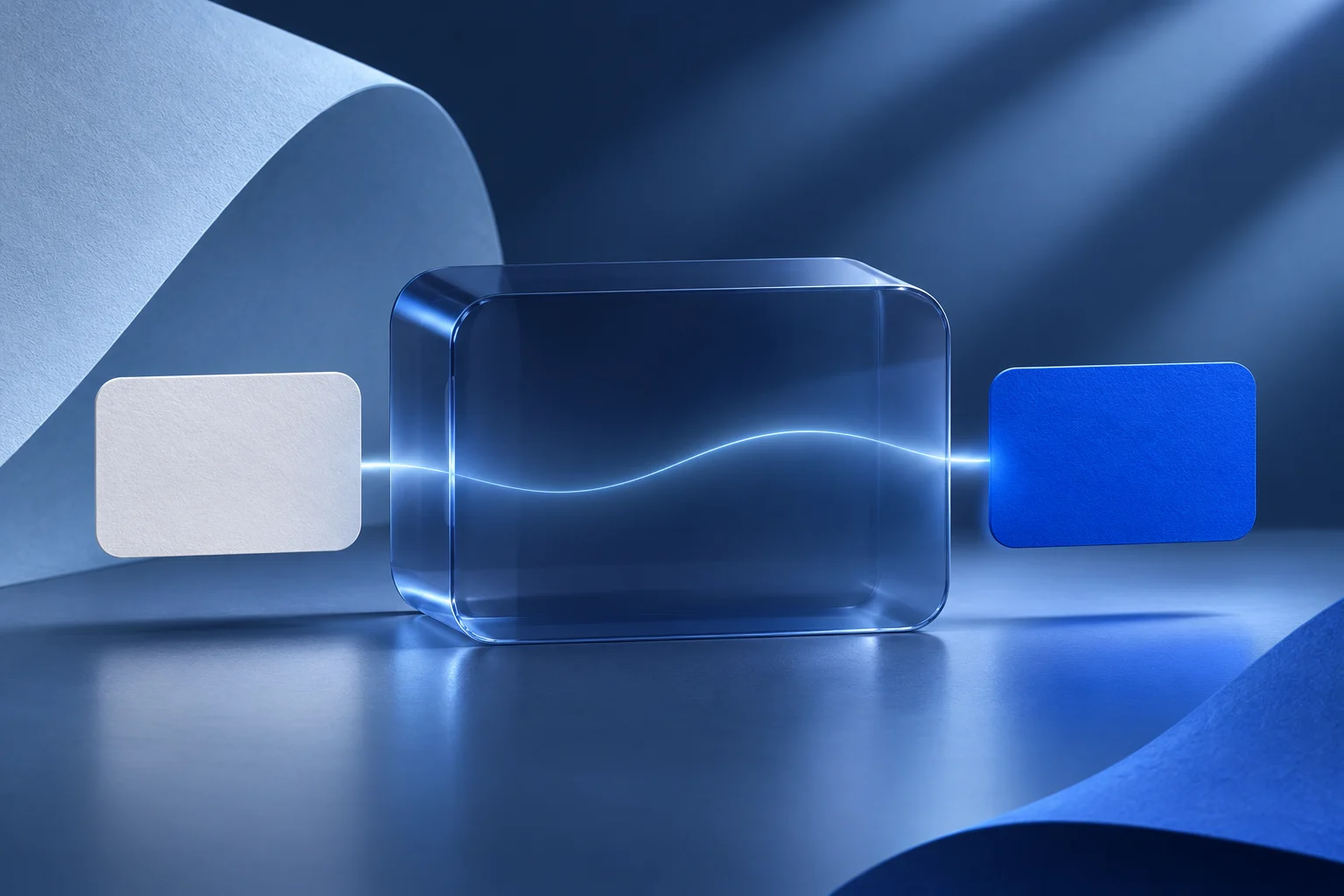
An invisible product feature needs visible evidence at both ends. Show the real input, the state while work is pending, and an observable output. Use a labeled diagram to bridge what cannot be filmed. Do not invent an internal dashboard and let it stand in for the product.
Background jobs, notifications and automatic rules can be valuable without giving the user a button to press. A short video about one of them should still answer a concrete task: what starts the work, what changes, when does the result become available, and what does the user still need to check?
Start with the input and output you can prove
Consider a fictional document tool called QueueLeaf. An authorized user uploads a file, the service checks for missing fields in the background, and a review list becomes available later. The example is invented for this guide; it is not a Prolifik feature or customer result.
The input is the permitted sample file. The output is the actual review list shown in a current test account. The internal checker is not visible. A video can show the upload and later review screen, but it must not fabricate a view of the checker working behind the scenes.
Write the claim before making any visuals: “QueueLeaf produces a review list for this sample file.” Do not expand it to “finds every error instantly” unless the product team has proof for that stronger statement.
Name the states between those endpoints
An asynchronous feature often has more than “before” and “after.” If the request can fail or need review, give those states their own place in the storyboard.
| State | What can be shown | What the caption may say |
|---|---|---|
| Submitted | Real accepted upload or request | “File received for review” if that is the actual state |
| Pending | Real status indicator or a labeled editorial bridge | “Checking is in progress” without a time guarantee |
| Ready | Actual review list for the sample | “Review list is ready” when that state is visible |
| Failed | Real failure message and recovery path | “This attempt did not finish” rather than hiding it |
If the product shows no pending state, do not add a fake spinner that looks native. Use a distinct editorial card such as “Processing happens in the background,” and mark it visually as your explanation. The viewer should know which frames are product capture and which are explanatory artwork.
Build a bridge that does not impersonate the app
A simple three-card diagram can connect the input to the output: “Sample file,” “Background check,” “Review list.” Keep exact labels in controlled text, not generated art that may mutate words. The diagram explains the process as documented; it does not prove its internal implementation.
For QueueLeaf, the bridge may last only as long as the viewer needs to understand the wait. Avoid animating invented servers, employees or proprietary rules. If the precise method is secret or changes by account, stay at the user-visible level.
The technical feature explainer guide covers explaining complex ideas. This page has a narrower proof problem: how to show an off-screen behavior without pretending to have filmed it.
Treat timing as a fact to verify
A background task may finish in seconds in a small test file and take longer in another account. Do not cut out the wait and describe the result as instant. An edit can compress time, but the caption should not turn one test into a universal speed promise.
Use an honest transition: “Later, when the review is ready…” or a visible elapsed-time label if the actual run was measured and the context is stated. If the output sometimes requires a refresh, show the refresh when it matters to the user's task.
For a public tutorial, choose one safe sample with a repeatable result. Record the input file's version, the account type, the job reference if available and the product release. That record helps the team reproduce the output when the feature changes.
Show the user's decision after the result
The video is not complete when the review list appears. Explain what the user does with it. For QueueLeaf, the person opens one flagged row, confirms the missing field and chooses whether to correct the file. The product may identify an issue, but the user still decides what to change.
A caption such as “Review this row before export” is specific. “Your data is now perfect” is not supported by the shown output. If the review list has exceptions or false positives, the short needs a path to the full documentation rather than an absolute claim.
The product integration demo guide covers a visible handoff between systems. An off-screen feature needs a different proof chain: input, actual status and an observable result.
Choose a format that matches the proof
A real recording of the input and output may become a short demo. If there is no usable screen action between them, a card sequence can make the state change clearer. Prolifik Image Carousel can assemble accepted text and permitted visuals into a slide-based output. It does not discover QueueLeaf's internal state, verify the job or create evidence that the background work happened.
Keep the source screen capture and the editorial bridge as separate files. Inspect the returned slides and timed video separately when both will be used. If the generated visual invents interface text, replace it with controlled artwork or real capture before publication.
The image-versus-video carousel guide can help choose whether the viewer should inspect each state at their own pace or watch a timed sequence. The choice does not change the underlying evidence required.
Review the complete implication
Show the cut to someone who has not read the brief. Ask what they think the product does and how quickly. Compare their answer with the exact input, output and product documentation. If they infer automation or accuracy the recording did not establish, revise the bridge or caption.
Finally, test the public route and destination separately. The finished video is an asset for review, not a posted item. Preserve the job or file identity, approved copy and output version so a later product change can be traced to the right frame.
Show the evidence in a clear card sequence
Use accepted input, status and output copy, then inspect the returned carousel panels and video separately.
Explore Image CarouselFacts checked 2026-11-02. Worked examples are illustrative unless a real source is identified.
- Prolifik: Image Carousel Checked 2026-11-02
- Prolifik: MCP documentation Checked 2026-11-02