
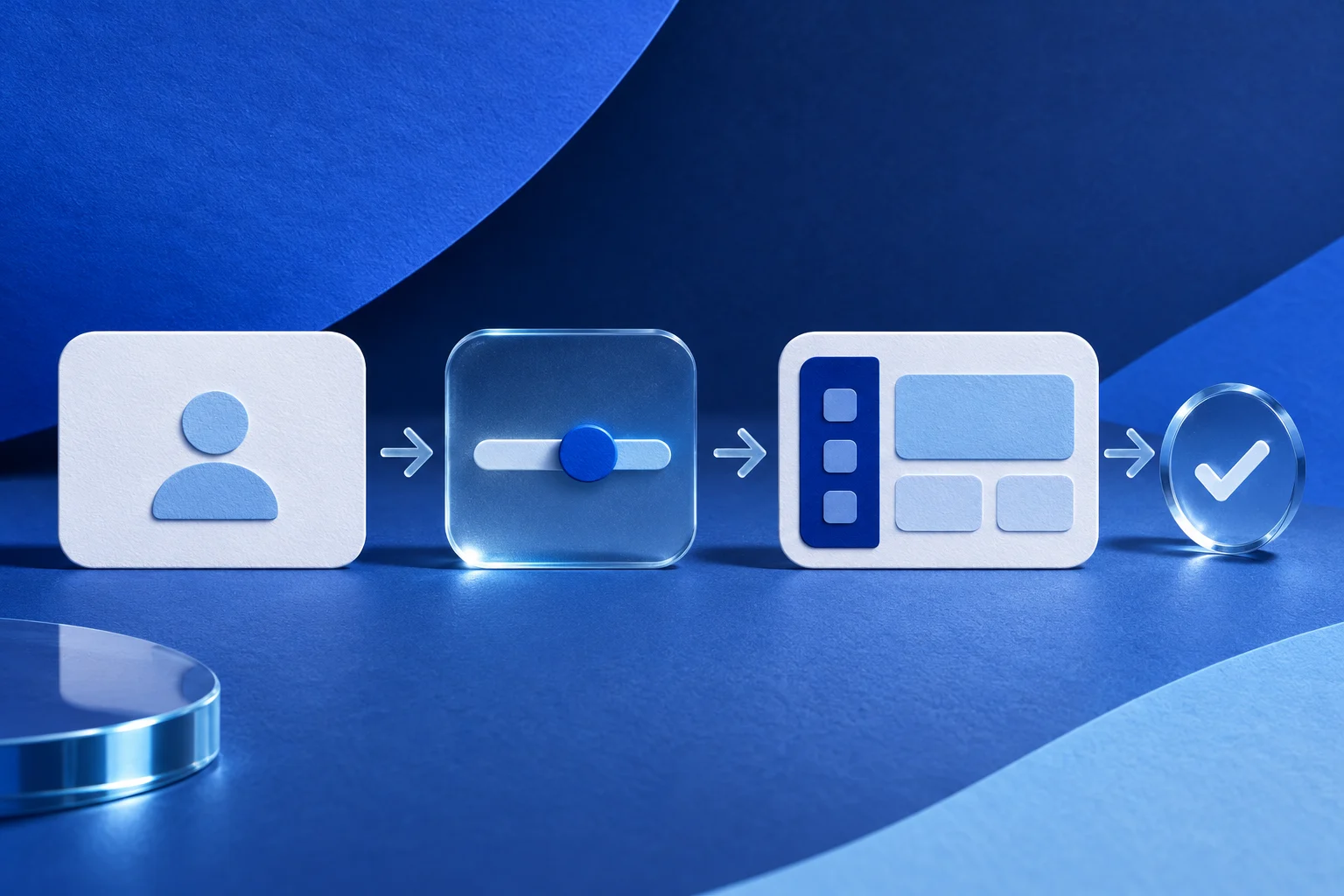
A first-run setup video should take a new user from one clear prerequisite to one successful action. Do not start with a tour of every menu. Give the viewer the account state they need, show the setup step they can perform, and end where they can verify that the product worked.
The method below uses a fictional team-notes app called Northline. It is a planning example, not an observed Prolifik customer flow.
Define who the first run is for
“New user” can mean a workspace owner, an invited teammate or a viewer on a trial account. They may not see the same buttons. Choose one role and plan state before recording. If the viewer needs an administrator to enable a setting, say so at the start rather than letting the video fail halfway through.
Northline's first-run task is: an invited editor creates a shared note and confirms a teammate can see it. That is a narrower and more useful goal than “learn Northline.” The owner-invite process is a prerequisite, not the task the video demonstrates.
Write the starting state beside the script: invitation accepted, correct workspace selected, permission to create notes. Check those conditions in the current product. A tutorial based on an owner account may give a new editor instructions they cannot follow.
Put prerequisites before the first click
A short opening can state the needed access without becoming a legal or billing disclaimer. For Northline: “You are signed in as an editor in a shared workspace.” If a sample file or integration is required, name it before the action.
| Stage | Viewer should know | Evidence in the recording |
|---|---|---|
| Ready | Which account and workspace are in use | Safe sample profile and workspace |
| Action | The first useful step | New note created in the real interface |
| Result | How success is recognized | Note visible to the intended teammate |
| Handoff | What the user does next | Invite or assign the appropriate owner, if needed |
Do not show a success card before the teammate's view has actually been checked. An “Invitation sent” status is not the same as “teammate can see the note.”
Use a safe account pair
Create sample users and neutral content for the recording. Real customer workspaces, names and confidential note text should stay out of the public tutorial. The first-run video can show a believable example without presenting it as a customer story.
Record the primary user completing the action. Then capture the second user's view if the result depends on another person's access. Label the perspective change. If it takes time to update, show the real refresh or state transition rather than cutting to a fully synchronized view without context.
The onboarding-tip video guide works for a single reminder. A first-run setup video must carry a complete starting state, action and verified result.
Script one path, not every option
An early user may be overwhelmed by plan comparisons, customization options and shortcuts. Choose the standard route that fits the stated account. Put advanced variants in a linked help article or a later video.
For Northline, a clear sequence is:
- Open the correct workspace.
- Create one shared note with sample text.
- Save it and find it in the list.
- Switch to the invited teammate and confirm the note is visible.
- Show the next owner action without implying the whole onboarding journey is complete.
If the note appears only after an invitation is accepted, keep that condition on screen. Do not reword a conditional step into “everyone sees it instantly.” The permissions-setting demo guide covers one role change in detail. Use that deeper path when access rules are the question.
Let the viewer read the result
A first-run video often fails in its final two seconds. The editor reaches the result and cuts before the viewer can recognize it. Hold the current product state long enough for the label or note title to be readable. If the interface is dense, prepare a closer capture, not an invented success image.
Test at phone size and with the sound off. The first action should remain understandable from the real screen and short overlays. If speech carries a necessary prerequisite, include a visible line or use a workflow that preserves the narration.
Do not hide a permission error, spinner or failed save to keep the cut fast. A failed first run calls for a corrected setup or an error-path tutorial, not a cheerful ending card.
Separate the recording from short-form packaging
If the team has the real Northline source recording, Prolifik Video Hook & Demo can build a short around it. It requires supplied footage and replaces the source audio with library music or silence in the current workflow. It does not create the account, perform the setup or verify access for a second user.
Review the returned file for crop, role labels, timing and the actual end state. The product demo script guide can help identify the one action and result that belong in the short.
A longer help-center recording may be better when the first-run path has several prerequisites. Do not force a multistep account configuration into a 20-second promotional edit if the audience needs more detail.
Hand off the next owner cleanly
The final frame should tell the viewer what to do after this first success. For Northline, the new editor may create a second note, while a workspace owner may need to invite the rest of the team. Label which person owns that next step.
Keep the product release, role, plan state, sample workspace and source file with the final export. Recheck after onboarding changes. A video that once helped a new user can become a source of support tickets when the setup path moves.
The approved media file, scheduled item and visible public post are separate states. Confirm the correct version at the destination before reporting the tutorial live.
Build a first-run short from genuine footage
Capture the real setup and verified result in a sample workspace, then inspect the delivered short before sharing it.
Explore Video Hook & DemoFacts checked 2026-11-02. Worked examples are illustrative unless a real source is identified.
- Prolifik: Video Hook & Demo Checked 2026-11-02
- Prolifik: product demo script guide Checked 2026-11-02