
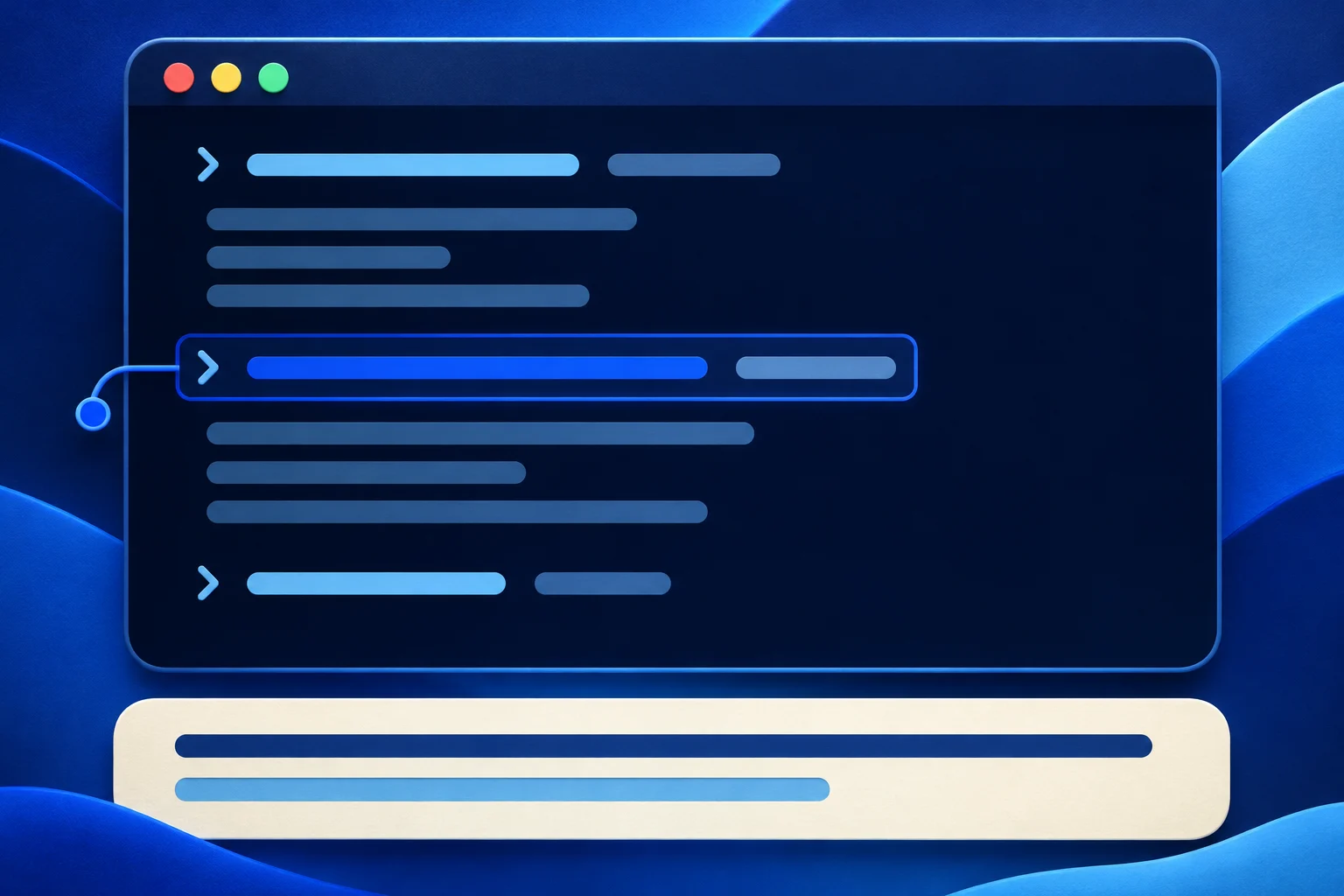
A terminal tutorial can fail even with accurate captions if the text covers the command, prompt or returned error the viewer needs to inspect. Plan the recording and caption region together. Keep exact code in the real source capture, then place the spoken explanation where it does not hide the evidence.
This guide uses a fictional command-line app called TaskForge. Its commands are illustrative pseudocode, not a command to run in Prolifik or another production system.
Decide what the viewer must read
A terminal video may include the typed command, current working context, response and next command. The captions should explain those elements, not replace them. If the spoken sentence says “the file was rejected because the owner field is empty,” the viewer needs to see the actual rejected field or error in the source.
For TaskForge, imagine a sample command taskforge check sample.json returning an illustrative missing-owner warning. The short's useful task is to recognize the warning and correct the sample, not to memorize every option in the tool.
Record a safe terminal with no real tokens, paths to customer files, usernames or private hostnames. Do not paste a secret into the command line just to make the demo look authentic.
Reserve the caption space before recording
The terminal can be positioned in the top or middle of the final vertical frame, leaving a deliberate region below for captions. Do not assume a caption tool will know which line of output is important.
| Screen element | Needs to stay visible? | Editing choice |
|---|---|---|
| Current command | Yes, when the task teaches it | Keep it large and avoid overlaying captions |
| Prompt/cursor | Often, to show where input begins | Keep enough context for the typed action |
| Error line | Yes, if it explains recovery | Hold the real line long enough to read |
| Unrelated terminal history | Usually no | Crop or start a clean session |
| Caption region | Yes, for spoken explanation | Keep it separate from command and error text |
If a long command cannot fit at phone width, shorten the example safely or split the teaching into parts. Do not shrink everything until it is unreadable.
Separate terminal output from editorial captions
A caption may say “The check found a missing owner.” The terminal itself may show an error code and file location. Those are different text layers. Style them differently so the viewer knows what the tool returned and what the presenter added.
W3C captions guidance includes meaningful non-speech information when it affects understanding. A terminal alert sound might matter; a decorative keyboard click may not. Do not use captions only as animated emphasis while omitting essential spoken conditions.
The caption artifact guide distinguishes picture text from a separate subtitle track. For a terminal demo, that distinction is critical: a corrected SRT file will not remove a wrong word already burned into the video.
Show the result of the correction
The TaskForge example should not end at the warning. Show a safe sample file with the missing owner field filled, rerun the check and show the actual accepted output. If the real app can still reject other fields, do not claim the whole import is perfect from one cleared error.
A compact sequence is: clean starting terminal, command, warning, one correction, same command, new result. Keep the input file identity stable across both runs. Do not splice a successful output from another file.
If the source has a pending state or takes time, use an honest time bridge rather than implying instantaneous completion. The error-recovery demo guide covers the wider failure-diagnosis-retry chain.
Test at the destination width
Watch a 320-pixel export. Can the viewer read the command, error and caption without zooming? If not, record at a larger terminal font or a narrower window. Cropping after the fact can enlarge blur but cannot restore lost source detail.
Test with sound off and on. If the caption timing lags the command, the viewer may associate the explanation with the wrong output. Check the first and last edited frame around every command or error.
Do not rely on a generic “AI captions” promise. Product names, flags, file names and negation need manual review. A command shown in the picture should match the words the presenter says and the answer the captions give.
Use a real source with Prolifik
A caption-led terminal recording can be supplied to Prolifik Video Hook & Demo after the source is approved. The format builds a short around real footage; it does not run TaskForge, generate a true terminal session or position captions to protect every command by itself.
The current Hook & Demo workflow replaces the source audio with library music or silence. If the tutorial needs spoken narration, use an appropriate path that preserves it. If the video works without speech, make the editorial text accurate and test the returned video for crop and readability.
A returned file is not a public post. Approve the exact media, accompanying copy and destination separately, then inspect the live presentation if it is published.
Keep the example safe to copy
An audience may copy a command shown in a tutorial. Label TaskForge as fictional and do not present pseudocode as a command for their account. For a real product, verify flags, permissions and version before recording. Keep the source command and product release beside the export so a later update can be corrected without guesswork.
If a command wraps at the edge of the terminal, the viewer may mistake the second visual line for a second command. Use a narrower safe example or a wider terminal region rather than adding a caption over the wrap. Pause after an error long enough for the viewer to compare the spoken cause with the visible line. The caption should not claim a return code or successful output that the recording did not show.
Prepare a readable terminal short
Keep the true command and output visible in the source capture, then inspect the returned short and caption position.
Explore Video Hook & DemoFacts checked 2026-11-02. Worked examples are illustrative unless a real source is identified.
- W3C WAI: captions and subtitles Checked 2026-11-02
- Prolifik: Video Hook & Demo Checked 2026-11-02