
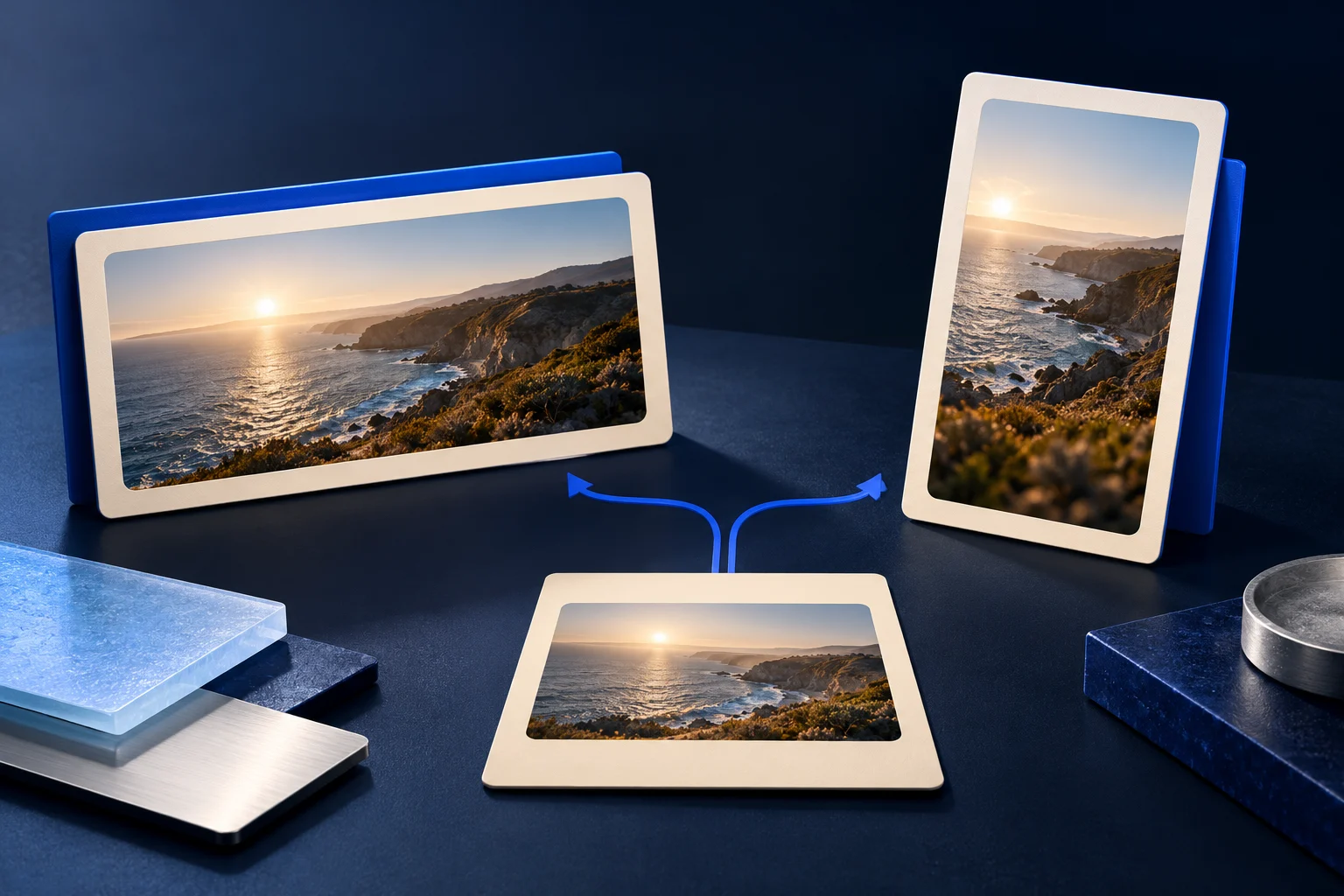
An App Store preview and a Reel can use the same genuine app recording, but they need separate briefs and exports. Apple's preview demonstrates the app within its store requirements. A social video introduces a reason to care in a different viewing context.
Do not assume a finished Reel is an App Store asset because it shows a phone app. Its opening footage, duration, dimensions, soundtrack and content may be wrong for that destination. Keep the two deliverables distinct from the start.
This guide uses an illustrative iPhone journaling app called DayLedger. It is fictional, and the planned edits are not evidence of App Store approval or a marketing result.
Give the store preview its own acceptance criteria
Apple describes app previews as demonstrations of features, functionality and interface using footage captured on device. For the DayLedger preview, that means showing the actual journaling interface rather than opening on a person holding a phone or a conceptual animation that invents the experience.
Apple's current specifications require a duration of 15–30 seconds and a maximum file size of 500MB. They list H.264 and ProRes 422 HQ formats, a maximum frame rate of 30fps, and device-specific accepted resolutions. Use the accepted resolution for the intended preview placement, not a remembered social-video canvas or the physical device resolution alone.
Those points are a starting check, not the complete submission contract. Follow the current technical table and App Review guidance for the exact device, language and file. A compliant export is still subject to the store's review.
Record a task that can support both edits
For DayLedger, the real action is creating a short journal entry, adding a mood label and finding that entry in the weekly view. Prepare a sample account without personal reflections, notifications or identifying information.
Capture the complete action cleanly on the relevant device. Keep the source before adding social hooks or decorative overlays. That master gives the editor material for different cuts without requiring an invented screen to fill a missing step.
Use a released build whose interface matches the listing. If a feature is not available to the people who can download the app, do not make it the centerpiece of the preview.
The mobile demo recording guide covers general readability. Store preparation adds destination requirements that a readable recording alone cannot satisfy.
Two edit plans from the same source
The following is an original editorial plan. The timings are illustrative choices within the store's duration range, not performance recommendations.
| Segment | Store-preview version | Social version |
|---|---|---|
| Opening | Open on the real entry screen | Introduce the problem of remembering the week's notes |
| Action | Show entry creation and the mood label | Choose the one action that best supports the opening |
| Result | Show the entry in its actual weekly context | Leave the useful result visible |
| Text | Clarify the demonstrated interaction | Orient a viewer unfamiliar with the app |
| Ending | Complete the app experience being shown | Offer a relevant next action |
A possible store cut spends its first section creating the entry, its middle section showing the mood selection and its final section showing the saved entry in the weekly view. The sequence stays within the actual app experience.
The social cut might focus only on finding the note again: “Keep the detail you want to remember next week.” It does not need to repeat every step from the store preview or imply that one note improves someone's wellbeing.
Separate promotional footage from product evidence
A reaction-style social hook can be appropriate for a promotional short, but it should not be treated as app interface footage. A shot of a presenter reacting to a phone is also a different visual category from a device capture.
For DayLedger's store version, retain genuine recorded behavior and avoid transitions that imply features the app does not have. For the social version, an opening can frame the problem, but the following demonstration must prove the specific action promised.
Our app install video ad guide addresses that social creative brief. It is not an App Store submission checklist, which is why the two files should not share an automatic approval status.
Review picture, text and audio for each destination
Watch both versions muted. A store visitor should understand the demonstrated app behavior without relying on a voiceover. A social viewer should recognize the task without needing the store description beside it.
Inspect the chosen store export against Apple's current audio, codec and resolution specifications. Keep music rights and any displayed content authorized for the intended use. Do not assume a track available in one creation workflow is automatically licensed for every store placement or territory.
If you use Prolifik's Hook & Demo for the social version, its current output replaces recording audio with library music or silence. Essential narration in the master will not survive that format unchanged. Make the social explanation clear in the delivered picture and text.
Keep the handoff unambiguous
Name the outputs by purpose, such as an iPhone store-preview export and an Instagram social cut. Include the source recording, approved copy, intended device or destination and the current specification check with each handoff.
Prolifik's app video workflows can help create the separate social material around genuine app footage. They do not automatically make an output App Store compliant, submit it to App Store Connect or guarantee review acceptance.
Approve the store asset through the developer's actual submission process. Approve the social asset in its actual publishing path. One accepted file does not prove the other is ready.
Create a separate social video for your app
Use genuine app footage for the social cut, while checking the store preview against Apple's current requirements.
Explore app video workflowsFacts checked 2026-10-24. Worked examples are illustrative unless a real source is identified.
- Apple: app previews Checked 2026-10-24
- Apple: app preview specifications Checked 2026-10-24