
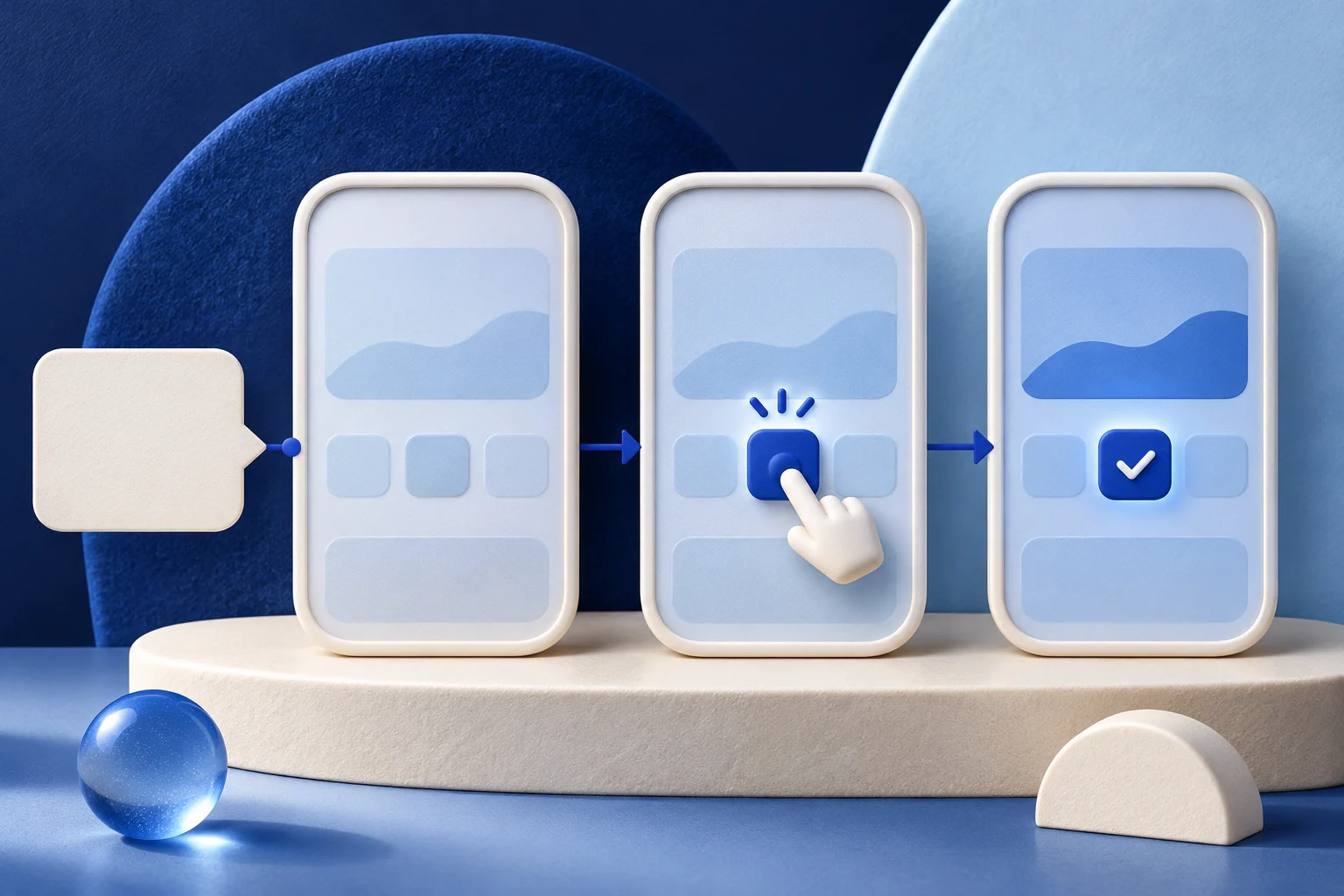
A tooltip can name a control, but a tutorial needs to show what the user does with it and what changes afterward. Do not animate the tooltip sentence over stock footage and call that a product demonstration. Start from the real interface, show one complete action and end at an observable result.
This guide uses a fictional calendar app called TeamHearth. Its sample feature and screens are invented to explain the production method, not to report a Prolifik customer result.
Decide whether the tooltip contains a task
Suppose a tooltip beside TeamHearth's availability setting says, “Set the hours your team can be booked.” That is a description, not a full instruction. The user still needs to know where to open the setting, which hours to choose, how to save and where the changed availability appears.
A micro tutorial should answer one of those tasks end to end. “Change Tuesday availability and check the public view” is narrow enough for a short. “Master team scheduling” is not.
Write the action in plain language before recording. If the tooltip is vague or the product behavior has changed, correct the source copy first. A polished video cannot make an obsolete in-app instruction true.
Separate the hint from the product evidence
The tooltip is a source of product language, but the recording must carry the behavior. Keep these three parts distinct:
| Part | What it contributes | What it cannot prove alone |
|---|---|---|
| Tooltip | Intended purpose of a control | The control works in the current build |
| Screen capture | Real user action and visible state | A universal outcome across every account |
| Editorial caption | A short explanation for a new viewer | A feature or permission that the app does not expose |
For TeamHearth, capture the current setting, the chosen Tuesday hours, save confirmation and resulting public booking view. Use a test workspace with invented names. Do not create a fake screenshot to fill a missing step.
Record one before-and-after pair
Start with the current Tuesday availability. Show the manager opening the setting, changing the hours and saving. Then open the public booking view that a customer would see. If the update needs a refresh or a delay, keep that condition visible.
The result may be “new available hours are shown,” not “every customer can now book.” A calendar can have other restrictions, capacity limits or plan rules. Keep the claim tied to the state you actually recorded.
The product demo script guide helps identify a clean action/result unit. A tooltip-derived tutorial adds one source check: the words in the app hint must still match the current action.
Make the overlay different from the tooltip
Repeating the tooltip word for word across the video wastes the chance to teach. Use the overlay for what the viewer needs at each moment: “Open availability,” “Change Tuesday,” “Check the booking view.” Keep exact labels in controlled text so an editor can update them when the interface changes.
Do not add a decorative arrow to every screen. A small focus cue may help if a control is hard to find, but it should not hide the actual field. The cursor highlight guide covers that separate editing choice. If the source is tiny on mobile, re-record a closer view.
Test the cut on a phone with sound off. Can the viewer follow the setting and result without relying on narration? If the tooltip's essential caveat disappears in the short, restore it as visible copy or send viewers to a fuller help page.
Decide whether the tutorial needs a second view
Some settings affect another user or public surface. In TeamHearth, the manager's save screen is not enough to prove what a customer sees. Capture the booking view separately and label the perspective change. Keep the same sample workspace and date in both views.
Do not splice a different account's public page merely because it looks cleaner. Preserve the source version and test account references in the private production brief so a reviewer can reproduce the result.
If a role or plan gate affects the setting, name it before the action. A tutorial made from an admin account can frustrate a teammate who cannot find the control.
Use Prolifik for the short after capture
Once the real TeamHearth task is recorded, Prolifik Video Hook & Demo can build a short around supplied footage. It does not turn tooltip text into a live app action or author a genuine screen recording from the URL alone.
The current Hook & Demo workflow replaces source audio with library music or silence. If the tooltip's condition was spoken during the capture, carry it in on-screen copy or choose another route that preserves narration. Review the returned short for the actual before-and-after and readable controls.
A generated file is not a published item. Approve the exact media, caption and destination separately, then inspect the public post if it goes live.
Keep the source and video versioned together
A later product update may move the availability setting or change the tooltip. Record the app version, tooltip wording, test workspace and final file. Recheck both the source hint and the tutorial after a relevant release.
A support teammate should be able to follow the finished video with the same sample account and reproduce the visible result. If their path differs, inspect the role, plan and workspace conditions before changing only the caption. That review catches a source mismatch that a visual polish pass may miss.
The tutorial is useful when a new user can complete one task from it. It is not a promise that every viewer will activate, retain or convert because they watched it.
Build a short from the real tooltip task
Record the setting and observed result in a safe workspace, then inspect the returned Hook & Demo video.
Explore Video Hook & DemoFacts checked 2026-11-02. Worked examples are illustrative unless a real source is identified.
- Prolifik: Video Hook & Demo Checked 2026-11-02
- Prolifik: product demo script guide Checked 2026-11-02